


Easy Rout Map: Navigation Path
4.3225.00 Reviews
App Specs
- Version
- 2.0.23
- Updated On
- License
- Free
- Downloads
- 10,000,000+
- Developer
- Travel Maps Tech
- Categories
- Travel & Local
- Platform
- Android
Screenshots
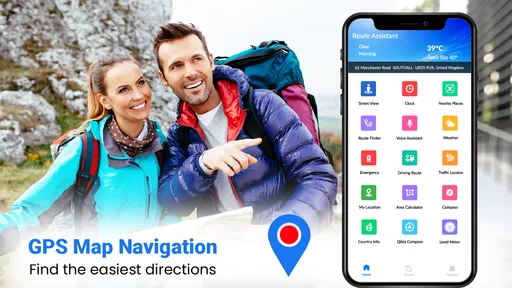


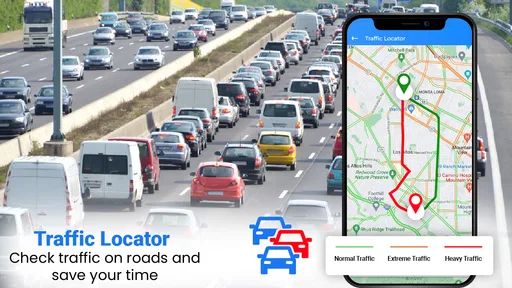
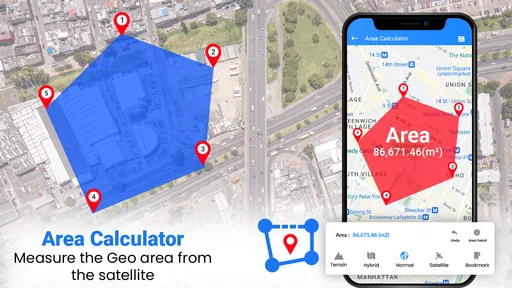



 Analysis by AppCompare
I tend to notice navigation apps most when a small snag interrupts a simple trip: a voice prompt is hard to hear, a destination takes a few tries to enter, or I am unsure whether the route is ready before I start moving. Easy Rout Map: Navigation Path is aimed at making everyday travel feel less complicated, with voice navigation and map viewing as its central appeal. I would treat it as a practical option to try for familiar journeys and occasional trips somewhere new, while checking a route before relying on it for an important arrival.
Where a quick start can still go wrong
The app is presented as an easy-to-use travel tool, but “easy” does not remove the small decisions that matter when setting off. I like to enter a destination while stopped, look over the route, and make sure the voice guidance is audible before I leave. That routine takes little time and avoids the awkwardness of trying to read a screen or correct an address while on the move.
Destination entry is one place where a navigation app can feel less straightforward than expected. Similar street names, a building with more than one entrance, or a place listed under a different name can send a search in an unexpected direction. I recommend checking the displayed destination against the address or landmark you actually intend to reach. If the result looks wrong, adjusting the search before starting is safer than hoping the route will sort itself out.
Voice guidance can help keep attention on the road, but it is not a substitute for basic preparation. In a noisy vehicle, a prompt may be easy to miss; in a quiet setting, it may be more noticeable than you want. I would check the device’s sound level and the app’s guidance settings before travelling, rather than changing them at a junction. A glance at the map while parked can also help you understand the broad direction of travel without relying on every spoken cue.
Setup checks that make the first trip smoother
Before using any map app, I check that the device can establish its location and that the destination is entered correctly. If the position marker seems slow to settle or appears somewhere implausible, I pause and give the device a moment rather than starting a route from a misleading location. A restart or moving to a place with a clearer view of the surroundings can be a sensible general troubleshooting step when location seems unreliable.
I also plan around the kind of connection the journey is likely to require. The app’s travel purpose makes it tempting to assume every map will be ready in every setting, but I would not begin an unfamiliar trip on that assumption. If service may be limited, check what map access is available before leaving and keep the destination details somewhere convenient. This is especially useful on a trip through rural areas or inside a large building, where finding a connection at the last moment may be inconvenient.
Another useful check is to compare the route preview with the trip you expect to make. If the proposed path seems to send you away from your destination, or if the starting point is not where you are, correct those details before moving. I find this quick review more valuable than treating a voice prompt as proof that everything is set. It also gives you a chance to notice whether the suggested route fits your preference for a direct drive or a more relaxed walk.
Worth Reading Before You Choose

EA SPORTS FC Mobile 26 Is a Bigger Football Game, but It Takes Time

Flipboard Shows What News Apps Must Do Beyond the Feed

Switching to Android Auto Means Rethinking Your Driving Routine

Google Calendar Makes a Crowded Week Easier to Manage

Ludo King Makes the Most of the Minutes Between Plans

Baby Panda World Brings Quick Play to Modern Phones, but Its Game Library Feels Busy
Recovering when guidance stops making sense
If the route appears to lose track of your position, I would first focus on safety: pull over or stop somewhere appropriate before handling the phone. Then check that the destination and current location still make sense, and allow the map a moment to refresh. When a route instruction seems inconsistent with visible signs or the actual road, follow the road rules and use your judgement instead of making a sudden turn to obey the screen.
For a trip that has become confusing, restarting the route from the confirmed destination can be more useful than repeatedly tapping around the map. If voice prompts are missing, check sound settings and make sure the device is not silenced. These are simple checks rather than guaranteed fixes, but they help distinguish a muted device or incorrect destination from a more persistent app issue. Keeping the phone securely positioned and avoiding interaction while driving matter more than recovering a route instantly.
For walking, I would use the map as a guide to the general direction and verify street names as I go, especially in a busy area with several nearby turns. That is a practical way to catch a mismatch early without staring continuously at the display. For cycling, I would check the route before setting off and stop safely if I need to reconsider it. The screen may be useful for orientation, but attention belongs on the path and the people around you.
Getting Started with Ease
The first thing that hits you about Easy Rout Map: Navigation Path is how simple it is to get started. I mean, you download the app, fire it up, and boom—you’re ready to roll. No lengthy setups or complicated permissions. Just pure, straightforward navigation. I'm all about apps that respect my time, and this one definitely does.
Features That Stand Out
One of the coolest things about this app is its user-friendly interface. The design is clean and intuitive, so you don’t have to fumble around trying to figure out what’s what. Everything is right where you’d expect it to be. And let's talk about those maps. Crisp and clear, they update in real-time, which is a lifesaver when you're on the move.
Another ace up its sleeve is the app’s offline capabilities. You can download maps ahead of time, which means you’re covered even when you hit those dreaded dead zones. Been there, done that, and trust me, it’s a game-changer.
Navigation at Its Best
When it comes to navigation, this app doesn’t just promise—it delivers. The turn-by-turn directions are spot on. You get clear voice guidance that’s not too chatty but just informative enough to get you where you need to go. And if you’re the kind of person who likes to keep an eye on your route, the live traffic updates are a handy feature.
Plus, for all you adventure seekers, it’s not just about roads. The app is pretty versatile, offering options for walking and biking paths too. So whether you’re cycling through the city or strolling in a park, you’re covered.
Matching the app to the journey
Easy Rout Map: Navigation Path is a travel and local app from Travel Maps Tech. It is free to install, rated for Everyone, and its current version is 2.0.18, with Android 6.0 as the minimum operating system requirement. It has a 4.3 average from around 13,000 ratings, and has passed 10 million installs. Those figures suggest plenty of people have tried it, but they cannot tell me whether its route choices suit a particular commute; I would judge that by testing a familiar route first.
For a weekday trip to an unfamiliar café, I would enter the address before leaving, check that the pin is on the right block, then let voice prompts handle the turns while I focus on traffic. If I were meeting a friend at a busy venue, I would confirm the exact entrance or nearby landmark rather than relying on the venue name alone. That small distinction can matter more than a polished map, especially when several entrances or nearby businesses share similar names.
On a weekend walk, the value is different: I want a clear sense of direction and a quick way to check whether I have taken the right street. For a longer drive, I would give more weight to route preview, traffic conditions and the ability to prepare for a weak-coverage stretch. These are different needs, so I would not judge the app solely by how quickly it handles a short trip around town.
Against the usual choices in this category, this app’s appeal is its straightforward, all-in-one feel: it brings map guidance and spoken directions into a tool intended for everyday movement. A dedicated road-navigation app may be a better fit for a driver who depends on detailed traffic planning, while a map service focused on places may be preferable when reviews, business details or local discovery are the main goal. I would choose this app when I want a simple route aid, not assume it replaces every specialist tool.
When the app may not be the cause
Navigation depends on more than the app itself. A weak or unavailable connection can affect information that needs to refresh, while a device struggling to determine its location can make the displayed position lag behind reality. If the map looks wrong, I would check whether the phone’s location is behaving normally and whether the connection is available before concluding that the route calculation is at fault.
Road conditions can also change faster than a map view does. Temporary closures, construction, restricted access and newly changed street layouts are all reasons to treat directions as guidance rather than an instruction that overrides signs. If a suggested turn is blocked or unsafe, continue legally and reassess once stopped. This is one reason I would keep a general sense of the route instead of following each prompt blindly.
There is a trade-off in relying on any single navigation tool: convenience can make it easy to stop paying attention to landmarks and road signs. I prefer to use the spoken directions for timing and the map for orientation, then let real-world signs settle any disagreement. That approach is especially helpful in unfamiliar areas, where the map may show the broad route but the final approach to a building can still require judgement.
Who I would recommend it to
I would suggest trying it if you want a simple travel companion for ordinary drives, walks or cycle trips, and you prefer spoken prompts to constant screen-checking. It is also a reasonable candidate for someone who wants one app to explore basic route guidance before deciding whether they need a more specialised navigation setup. The free price makes that trial low-commitment, though in-app purchases are listed at $2.99 per item, so I would check what is included before buying anything.
I would be more cautious if you need navigation for a high-stakes arrival, a complicated multi-stop itinerary, or a route where you must know exactly how current traffic and road restrictions are handled. In those cases, compare the route against a second source before setting out, and consider whether a specialist service better matches the journey. Likewise, anyone who depends on uninterrupted access in remote areas should test their map preparation in advance rather than discovering the limits of their setup mid-trip.
One practical habit that pays off is to test the app on a short, familiar journey first. You can learn how its voice prompts sound, how the map presents turns, and whether the route choices suit your habits without the pressure of being late. If the experience feels clear on that easy trip, you will have a better basis for deciding whether to use it for a longer one.
Wrapping It Up
In a world where navigation apps can often be more confusing than the routes themselves, Easy Rout Map: Navigation Path is a breath of fresh air. It’s straightforward, accessible, and actually makes your life easier. Whether you’re off on a cross-country road trip or just trying to find your way to a new café in town, this app’s got your back.
So, if you’re on the hunt for a navigation app that combines simplicity with functionality, give this one a whirl. You might just find it to be the trusty travel companion you never knew you needed. Happy navigating!
Pros
- User-friendly interface for easy navigation.
- Accurate real-time traffic updates.
- Offline maps for data savings.
- Customizable routes for efficiency.
- Voice-guided directions enhance safety.
Cons
- Limited public transport options.
- Occasional GPS signal dropouts.
- In-app ads can be distracting.
- No multi-stop trip planning.
- Battery consumption is high.
FAQs for Easy Rout Map: Navigation Path
What features does Easy Rout Map: Navigation Path offer?
Easy Rout Map: Navigation Path provides real-time GPS navigation, route planning, and traffic updates to help users find the most efficient paths. It includes voice-guided directions, offline maps, and customizable route preferences. Users can also save favorite locations and share routes with friends, making it a comprehensive tool for both everyday commuting and travel planning.
Is Easy Rout Map: Navigation Path available offline?
Yes, Easy Rout Map: Navigation Path offers offline map functionality. Users can download maps for specific regions to their devices, allowing them to navigate without an internet connection. This feature is particularly useful for travelers or when driving through areas with poor network coverage, ensuring continuous navigation support.
How accurate is the real-time traffic information in Easy Rout Map: Navigation Path?
The app uses a combination of user data, historical traffic patterns, and partnerships with traffic data providers to deliver accurate real-time traffic updates. This helps in calculating the most efficient routes and travel times. While generally reliable, occasional discrepancies may occur due to sudden events like accidents or road closures.
Does Easy Rout Map: Navigation Path support public transportation and walking directions?
Yes, the app provides comprehensive directions for various modes of transportation, including public transit and walking. Users can view schedules, transit lines, and walking paths to choose the best option for their journey. This multi-modal support makes the app versatile for different travel needs, not just driving.
What are the subscription options for Easy Rout Map: Navigation Path?
Easy Rout Map: Navigation Path offers both free and premium subscription plans. The free version includes basic navigation features, while the premium subscription unlocks advanced features like ad-free usage, enhanced traffic data, and additional map customization options. Users can choose a monthly or annual subscription based on their needs.


